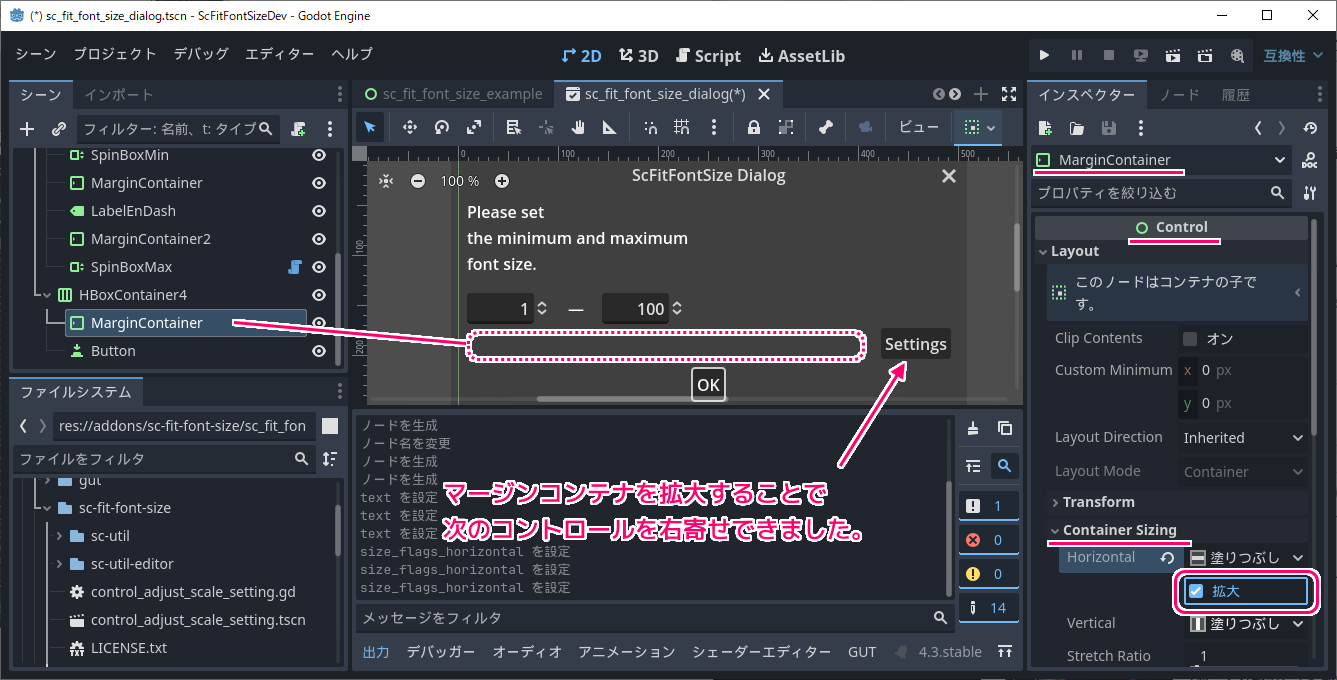
無料・軽快な 2D / 3D 用のゲームエンジン Godot Engine 4 で、ダイアログの基礎となるクラス AcceptDialog に、 Container の派生クラスを MarginContainer を配置に追加して、右隣の Control (例:Button)をダイアログの端に右寄せする設定例を紹介します。
※ GodotEngine 4.3 を使用しています。.NET 版ではありません。
※スクリプトは自己責任でご使用ください。
MarginContainer は余白を作るコンテナ
MarginContainer は、縦横に配置するボタンやラベルなどの間に隙間、余白を作るコンテナです。
これにより、敷き詰められるコントロールに適度な間隔を持たせられます。
MarginContainer adds an adjustable margin on each side of its child controls. The margins are added around all children, not around each individual one. To control the MarginContainer‘s margins, use the
margin_*theme properties listed below.MarginContainer は、子コントロールの両側に調整可能なマージンを追加します。マージンは、個々の子の周囲ではなく、すべての子の周囲に追加されます。 MarginContainer のマージンを制御するには、以下にリストされている margin_* テーマのプロパティを使用します。
MarginContainer — Godot Engine (4.3) documentation in English と Google 翻訳
MarginContainer を使って隣のコントロールを右寄せする
横にコントロールを並べて配置する HBoxContainer に以下の二つのコントロールを追加しました。
この Button コントロールを右端に寄せるために、余白を作る MarginContainer を左側に配置しましたが、余白はほんのわずかしか作られず、ボタンは右寄せされません。
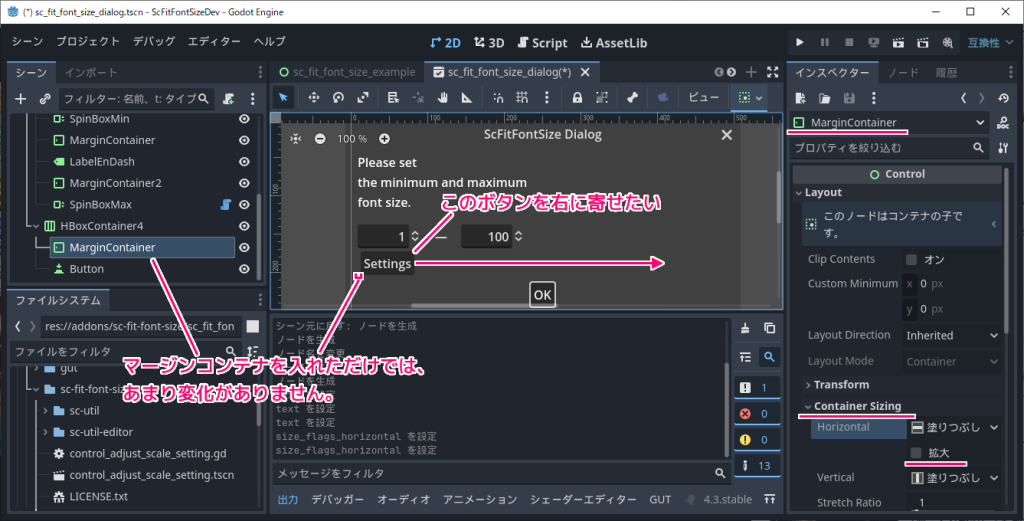
右寄せするために、以下の Control のプロパティの設定を変更します。
- size_flags_horizontal
BitField[SizeFlags] size_flags_horizontal =
1🔗Tells the parent Container nodes how they should resize and place the node on the X axis. Use a combination of the SizeFlags constants to change the flags. See the constants to learn what each does.
親コンテナノードに、ノードのサイズ変更方法と X 軸上での配置方法を指示します。 SizeFlags 定数の組み合わせを使用してフラグを変更します。それぞれの機能については定数を参照してください。
Control — Godot Engine (4.3)の日本語のドキュメント #size-flags-horizontal と Google 翻訳
X 軸上でのサイズ変更方法と配置方法を指示する size_flags_horizontal に、利用可能なスペースを全て埋める SIZE_FILL と利用可能なスペースを全て占有する SIZE_EXPAND を設定します。
size_flags_horizontal の初期値では、 SIZE_FILL のみが選択されていて、 SIZE_EXPAND は設定されていませんでした。
SizeFlags SIZE_FILL =
1Tells the parent Container to expand the bounds of this node to fill all the available space without pushing any other node. It is mutually exclusive with shrink size flags. Use with size_flags_horizontal and size_flags_vertical.
他のノードをプッシュせずに、このノードの境界を拡張して利用可能なスペースをすべて埋めるように親コンテナに指示します。サイズ縮小フラグとは相互に排他的です。 size_flags_horizontal および size_flags_vertical と一緒に使用します。
Control — Godot Engine (4.3) documentation in English と Google 翻訳
SizeFlags SIZE_EXPAND =
2Tells the parent Container to let this node take all the available space on the axis you flag. If multiple neighboring nodes are set to expand, they’ll share the space based on their stretch ratio. See size_flags_stretch_ratio. Use with size_flags_horizontal and size_flags_vertical.
フラグを立てた軸上の利用可能なスペースをすべてこのノードに占有するように親コンテナに指示します。複数の隣接ノードが拡張するように設定されている場合、それらのノードは拡張率に基づいてスペースを共有します。 size_flags_stretch_ratio を参照してください。 size_flags_horizontal および size_flags_vertical と一緒に使用します。
Control — Godot Engine (4.3) documentation in English と Google 翻訳
シーンドックで MarginContainer ノードを選択して、インスペクタードックで Control クラスの ContainerSizing セクションの Horizontal 項目の「拡大」にチェックを入れることで SIZE_EXPAND を追加します。
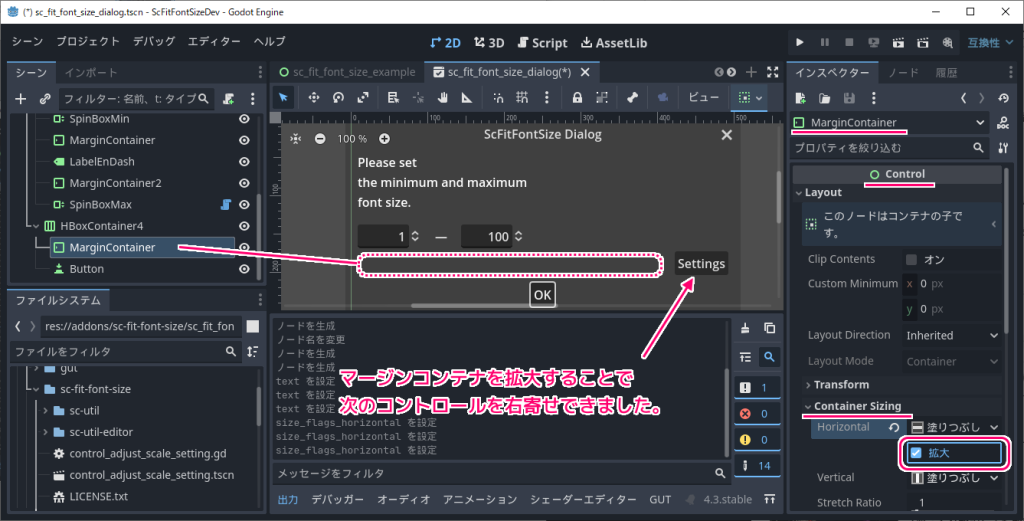
以上で、 HBoxContainer の下位にある、 SIZE_FILL と SIZE_EXPAND を設定した MarginContainer ノードの右側の Control(例:Button)がダイアログの右端に寄せられました。
関連記事
AcceptDialog の利用例に関しては以下の記事を参照してください。
まとめ
AcceptDialog の縦横に並べて配置するボタンなどの Control(例:Button) を、HBoxContainer に余白を作る MarginContainer を追加することで、ダイアログの右側に寄せて配置しました。
参照サイト Thank You!
- Godot Engine – Free and open source 2D and 3D game engine
- AcceptDialog — Godot Engine (4.x)の日本語のドキュメント
- HBoxContainer — Godot Engine (4.3)の日本語のドキュメント
- Control — Godot Engine (4.3) documentation in English
- Control — Godot Engine (4.3)の日本語のドキュメント #size-flags-horizontal
- MarginContainer — Godot Engine (4.3) documentation in English
- Button — Godot Engine (4.3)の日本語のドキュメント
記事一覧 → Compota-Soft-Press


コメント