無料・軽快な 2D / 3D 用のゲームエンジン Godot Engine 4 で、ConfigFile クラスを用いて、Config ファイルの指定したセクションに保存されている全ての設定値を取得する実装例を紹介します。
取得した設定値は、 同じキーと値の組み合わせで Dictionary 型の変数に格納します。

※ GodotEngine 4.3 を使用しています。.NET 版ではありません。
※スクリプトは自己責任でご利用ください。
前回の記事
辞書変数のデータを Config ファイルにセーブする関数の実装例は、以下の記事を参照してください。
スクリプト例
以下は、テスト用のシーンのルートノードに割り当てるスクリプトです。
Config ファイルからの読み込みは、ConfigFile クラスの load 関数で行います。
has_section 関数で、指定したセクションが存在するか確認します。
get_section_keys 関数で、指定したセクション内のすべての項目のキーを取得して、それらのキーに対応する値を get_value 関数で取得しています。
取得した値は、Dictionary 型の変数の同じキーと値の組み合わせで格納しています。
extends Node
## ConfigFile のセクションの読み書きを Dictionary 型を用いて行う関数とそのテストです。
## F6 キーでこのスクリプトを割り当てたシーンを実行すると起動直後にテストが実行されます。

# Called when the node enters the scene tree for the first time.
func _ready():
	test_load_config_file_section_to_dictionary()
	return


## load_config_file_section_to_dictionary のテスト関数です。
func test_load_config_file_section_to_dictionary():
	## 以下のパスに .cfg ファイルが作成されます。
	const CONFIG_FILE_PATH = "res://study/config_file/sample.cfg"
	const CONFIG_FILE_SECTION = "scale_correction_value"

	## セクション内に保存されるデータです。
	var dic_answer = {}
	dic_answer["Label"] = 0.9
	dic_answer["Button"] = 1.0

	# 辞書のデータ群を、指定した Config ファイルのセクションに保存します。
	# ファイルが存在しない場合は作成し、存在する場合は辞書の要素ごとに上書きします。
	print("save_config_file_section_from_dictionary call")
	save_config_file_section_from_dictionary(
		CONFIG_FILE_PATH, CONFIG_FILE_SECTION, dic_answer)

	## 指定した Config ファイルのセクションを読み込み、辞書として取得します。
	print("load_config_file_section_to_dictionary call")
	var dic: Dictionary = load_config_file_section_to_dictionary(
		CONFIG_FILE_PATH, CONFIG_FILE_SECTION)

	# 保存した辞書の内容と、読み込んだ辞書の内容が等しいことを確認します。
	# 異なる場合は警告を出力します。
	if dic != dic_answer:
		push_warning("study_config_file_to_dictionary.gd:" +
			"test_load_sample_dictionary:" +
			"dic != dic_answer")

	# デバッグ用。読み込んだ辞書の内容を出力します。
	var str_dic: String = ScUtil.to_pretty_print_string(dic)
	print(str_dic)

	return


## 指定した .cfg ファイルのセクションを辞書型で取得します。
func load_config_file_section_to_dictionary(
	path: String, section: String) -> Dictionary:

	var dic := {}
	var config_file := ConfigFile.new()

	var err := config_file.load(path)
	if err != OK:
		push_warning("study_config_file_to_dictionary.gd:" +
			"load_config_file_section_to_dictionary:" +
			"config_file.load(path) != OK")
		return dic

	if config_file.has_section(section) == false:
		push_warning("study_config_file_to_dictionary.gd:" +
			"load_config_file_section_to_dictionary:" +
			"config_file.has_section(section) == false")
		return dic

	for key in config_file.get_section_keys(section):
		dic[key] = config_file.get_value(section, key)

	return dic


## 指定した .cfg ファイルのセクションに、辞書型のデータを保存します。
## 辞書の要素のキーは、ConfigFile.set_value の key 引数、値は value 引数に対応します。
func save_config_file_section_from_dictionary(
	path: String, section: String, dic: Dictionary) -> void:

	# セーブする dic の要素を1つずつ config_file に設定します。
	var config_file := ConfigFile.new()
	for key in dic.keys():
		config_file.set_value(section, key, dic[key])

	# Config ファイルに保存します。
	var err = config_file.save(path)
	if err != OK:
		push_error("study_config_file_to_dictionary.gd:" +
			"save_config_file_section_from_dictionary:" +
			"config_file.save(path) != OK, path = ", path)

	return
処理の流れ
そのシーンを実行すると、起動直後に _ready イベント関数で、テスト関数 (test_load_config_file_section_to_dictionary) が呼ばれます。
テスト関数の前半では、前回の記事で紹介した辞書変数の要素を Config ファイルのセクションに保存する処理が行われます。
	dic_answer["Label"] = 0.9
dic_answer["Button"] = 1.0テスト関数の後半では、新たに追加した Config ファイルのセクションの設定値を辞書変数として読み込む関数 (load_config_file_section_to_dictionary) を呼び出し、読み込んだ辞書変数が、前半で保存に用いた辞書変数と同じであることを確認します。
ScUtil.to_pretty_print_string 関数については以下の記事を参照してください。

テスト
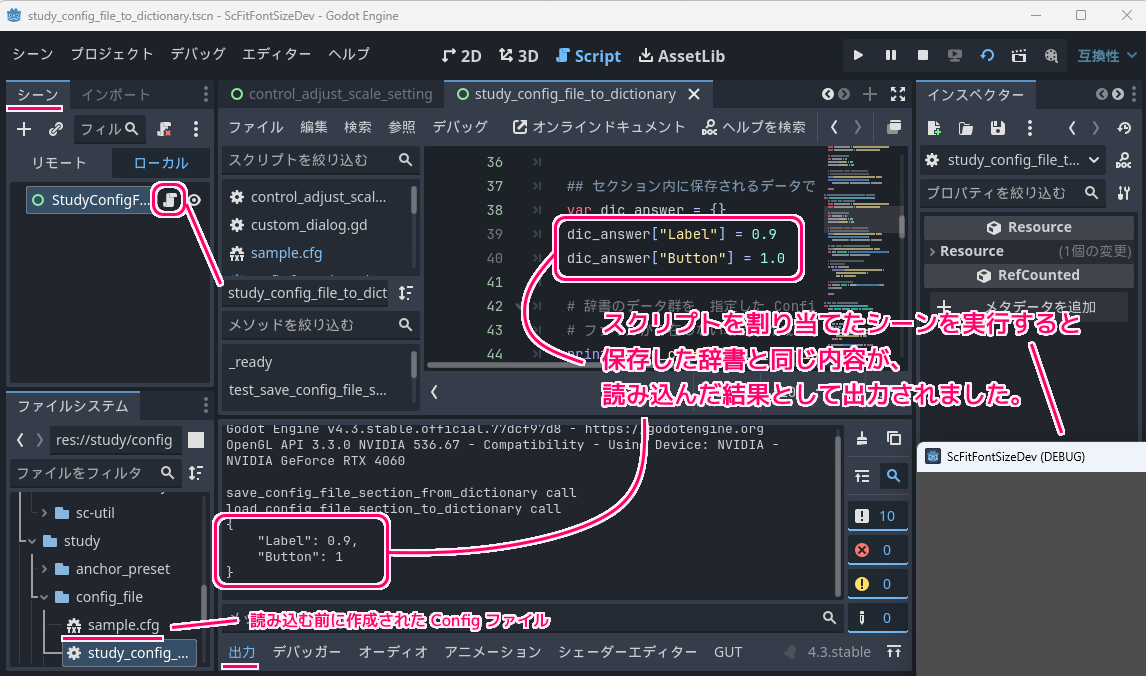
新規作成したシーンのルートノードに、前述のスクリプトを割り当て、 F6 キーなどでシーンを実行します。
実行すると、前回の記事で紹介したように、指定したパス(例:res://study/config_file/sample.cfg)に Config ファイルが作成されます。
その後、今回追加した、Config ファイルのセクションを読み込んだ辞書変数の内容が、出力ボトムパネルに表示されます。
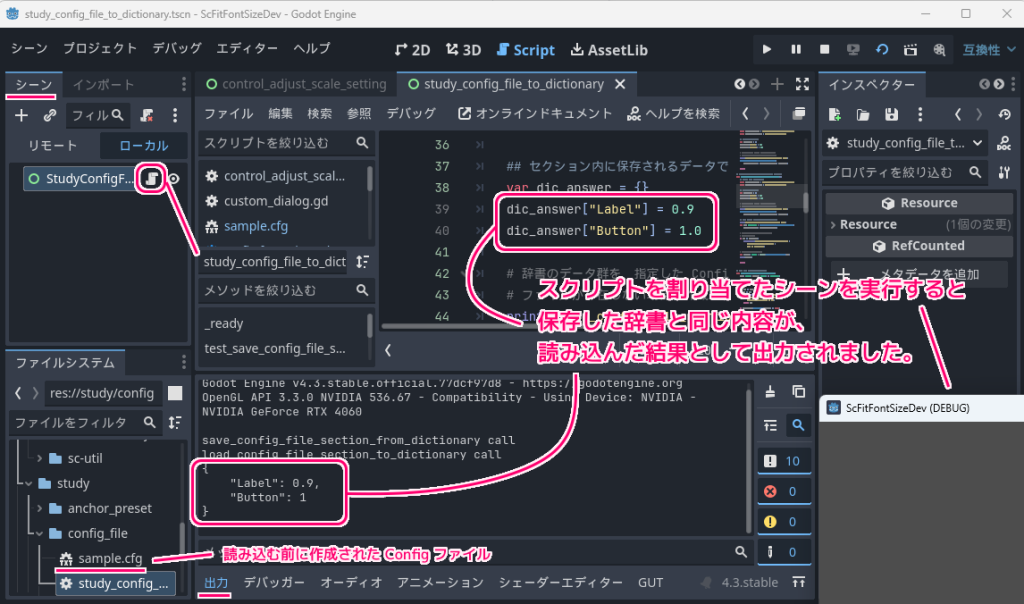
スクリプト例の 40 ~ 42 行目のデバッグ用の処理で出力された、Config ファイルを読み込んだ辞書の内容を確認すると、読み込む前に Config ファイルに保存した辞書の内容と同じであることが確認できました。
save_config_file_section_from_dictionary call
load_config_file_section_to_dictionary call
{
	"Label": 0.9,
	"Button": 1
}

--- Debugging process stopped ---
まとめ
- ConfigFile の load 関数で Config ファイルを読み込み、指定したセクションのキーに対応する値を get_value 関数で取得できます。
- has_section 関数で、指定したセクションが存在するか確認できます。
- get_section_keys 関数で、指定したセクション内のすべての項目のキーを取得できます。
- Config ファイルのセクションから読み込んだ設定値を、Dictionary 型の辞書変数に格納して、書き込みに用いた辞書変数と同じことを確認しました。
参照サイト Thank You!
- Godot Engine – Free and open source 2D and 3D game engine
- Dictionary — Godot Engine (4.3) documentation in English
- ConfigFile — Godot Engine (4.3) documentation in English
記事一覧 → Compota-Soft-Press



コメント