無料・軽快な 2D / 3D 用のゲームエンジン Godot Engine 4 で、EditorSettings の機能を用いて、GodotEngine のエディタの設定に、独自の設定を追加・保存する実装例です。
EditorInterface の機能は、エディタ上でのみ利用可能なので、シーン実行ではなく新規プラグインから追加したツールメニューを選択することで実行させます。

※ GodotEngine 4.3 を使用しています。.NET 版ではありません。
※スクリプトは自己責任でご利用ください。
前回の記事
プロジェクトごとに設定を保存できる ConfigFile クラスを用いて Dictionary 型の変数の要素を保存・読み込む実装例については、以下の記事を参照してください。
EditorSettings について
EditorSettings は、各プロジェクトごとの ConfigFile による設定よりも広い、同じバージョンのエディタを使用する全てのプロジェクトの設定値を管理します。
Object that holds the project-independent editor settings. These settings are generally visible in the Editor > Editor Settings menu.
プロジェクトに依存しないエディタ設定を保持するオブジェクト。これらの設定は通常、[エディター] > [エディター設定] メニューに表示されます。
EditorSettings — Godot Engine (4.3) documentation in English と Google 翻訳
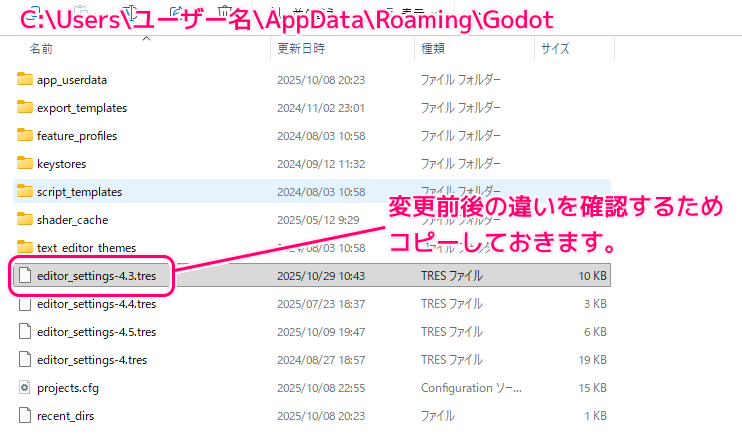
EditorSettings の設定は、「C:\Users\ユーザー名\AppData\Roaming\Godot」フォルダの editor_settings-バージョン.tres ファイル(例:editor_settings-4.3.tres )にテキスト形式で保存されています。
使用しているエディターのバージョンごとに保存先は変わります。
シーン実行では EditorInterface は使用できません
F6 キーでシーンを実行して、そのルートノードに割り当てたスクリプトを実行したところ以下のエラーが発生しました。
Invalid call. Nonexistent function 'get_editor_settings' in base 'EditorInterface'.EditorInterface の機能は、ツールメニューの選択など、エディタ上でしか利用できないようです。
以下は、そのときにシーンのルートノードに割り当てたスクリプトです。
※実行しても EditorInterface の関数呼び出しでエラーになります。
extends Node
## EditorSettings の「ユーザ名/アドオン名/セクション名/キー」の読み書きを Dictionary 型を用いて行う関数とそのテストです。
## F6 キーでこのスクリプトを割り当てたシーンを実行すると起動直後にテストが実行されます。

# Called when the node enters the scene tree for the first time.
func _ready():
	test_save_editor_settings_section_from_dictionary()
	return

func test_save_editor_settings_section_from_dictionary():
	## 以下の 2 つを組み合わせて、さらにキー名を追加した name で辞書変数の値にアクセスします。
	const EDITOR_SETTINGS_PATH = "sclib/fit_font_size/"
	const EDITOR_SETTINGS_SECTION = "scale_correction_value/"

	## セクション内に保存されるデータです。
	var dic_answer = {}
	dic_answer["Label"] = 0.9
	dic_answer["Button"] = 1.0

	# 辞書のデータ群を、指定した Config ファイルのセクションに保存します。
	# ファイルが存在しない場合は作成し、存在する場合は辞書の要素ごとに上書きします。
	print("save_editor_settings_section_from_dictionary call")
	save_editor_settings_section_from_dictionary(
		EDITOR_SETTINGS_PATH, EDITOR_SETTINGS_SECTION, dic_answer)

	return


## 指定した EditorSettings の path (例:「ユーザ名/アドオン名」)のセクションに、辞書型のデータを保存します。
## 辞書の要素のキーは、EditorSettings.set_settings の name 引数、値は value 引数に対応します。
##
## [param path] と [param section] を連結した base_path に、
## 辞書の要素キーを付け加えた name に対して value を設定します。
##
## [param path] に "user_name/addon_name/" を指定して、
## [param section] に "section_name/" を設定すると
## ユーザ名、アドオン名、セクション名を / で区切った後にキーを加えた name に value を設定します。
func save_editor_settings_section_from_dictionary(
	path: String, section: String, dic: Dictionary) -> void:

	# 設定を保存する name のキーの1つ前までの階層の文字列を作成します。
	var base_path := path + section

	# EditorSettings に dic の各要素を保存します。
	var editor_settings = EditorInterface.get_editor_settings()
	if editor_settings == null:
		push_error("study_eidotr_settings_by_dictionary.gd:" +
			"save_editor_settings_section_from_dictionary:" +
			"editor_settings == null")
		return

	for key in dic.keys():
		var editr_settings_name: String = base_path + key
		print("name = ", editr_settings_name)
		editor_settings.set_setting(editr_settings_name, dic[key])
	# TODO プラグインとして追加してそちらから起動しないとエラーになる。
	return
テスト用のプラグインの作成
EditorInterface の機能を使うために、プラグインを作成して、そのプラグインの _enter_tree イベント(初期化のようなイベント)で追加したツールメニューを選択して関連付けた受信側メソッドで実行します。
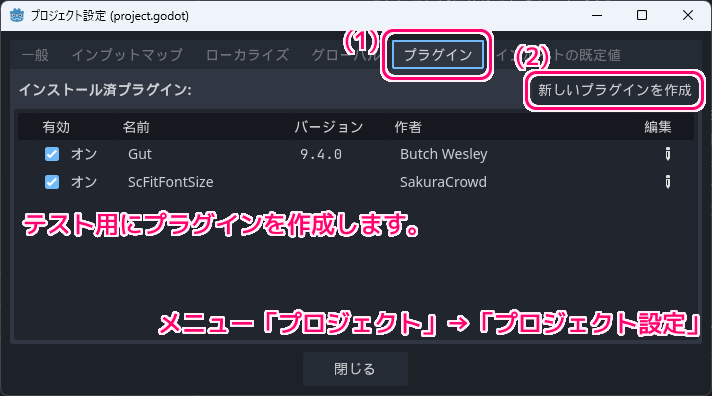
メニュー「プロジェクト」→「プロジェクト設定」で表示されたダイアログの「プラグイン」タブを開き、「新しいプラグインを作成」ボタンを押します。
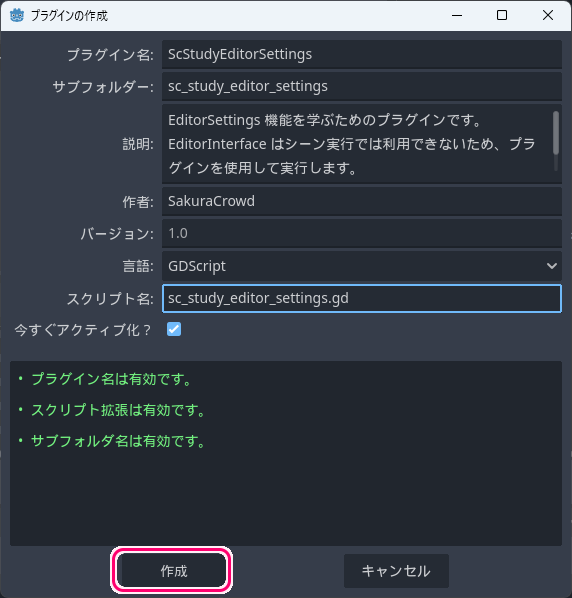
プラグインの名前、サブフォルダー、作者、スクリプト名などを入力して「作成」ボタンを押します。
スクリプトの保存
作成されたプラグインを構成する gd ファイルを開き、後述するスクリプトを貼り付けて保存します。
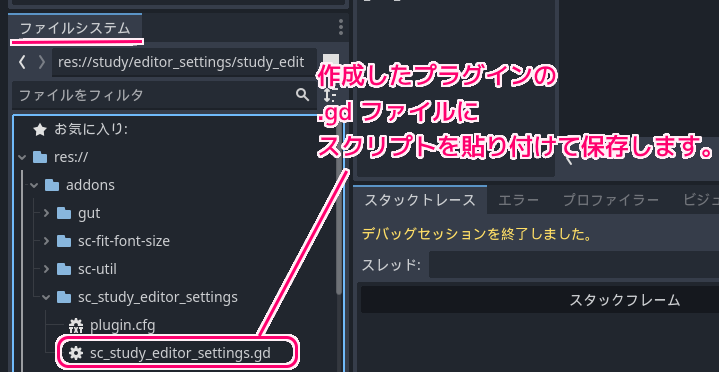
以下は、貼り付けるスクリプトです。
EditorInterface.get_editor_settings 関数で取得した EditorSettings クラスのインスタンスを用いて、set_setting メンバ関数を用いて、辞書変数の各要素の値を、キーを加えた name で EditorSettings に保存しました。
@tool
extends EditorPlugin

## EditorSettings の「ユーザ名/アドオン名/セクション名/キー」の読み書きを Dictionary 型を用いて行う関数とそのテストです。
## EditorInterface の機能はエディタ上で利用できます。
## EditorSettings の機能を含む関数を実行するために、プラグインとしてこのスクリプトを追加して
## ツールメニュー(「プロジェクト」→「ツール」)から、これが追加したメニューを選択してください。

## メニューアイテムの表示名です。
const tool_menu_item_name: StringName = "Study EditorSettings By Dictionary"

## プラグインの初期化処理を定義します。
## プラグイン (プロジェクト設定ダイアログ>プラグイン>有効) を有効にした直後や、プラグインが有効な状態のプロジェクトを開いた際に呼び出されます。
func _enter_tree():
	# メニュー「プロジェクト」→「ツール」にサブメニューを追加します。メニュー選択時に、第二引数のメンバ関数を呼び出します。
	add_tool_menu_item(tool_menu_item_name, Callable(self, "_on_menu_item_study_editor_settings_by_dictionary"))
	return


## プラグインの後片付けの処理を定義します。
## プラグインを無効 (プロジェクト設定ダイアログ>プラグイン>有効) にした直後や、プラグインが有効な状態でプロジェクトを閉じた際に呼び出されます。
func _exit_tree():
	# Clean-up of the plugin goes here.
	remove_tool_menu_item(tool_menu_item_name)
	return


## プラグインで追加したツールメニューを選択した際に呼び出される関数です。
func _on_menu_item_study_editor_settings_by_dictionary():
	test_save_editor_settings_section_from_dictionary()
	return


func test_save_editor_settings_section_from_dictionary():
	## 以下の 2 つを組み合わせて、さらにキー名を追加した name で辞書変数の値にアクセスします。
	const EDITOR_SETTINGS_PATH = "sclib/fit_font_size/"
	const EDITOR_SETTINGS_SECTION = "scale_correction_value/"

	## セクション内に保存されるデータです。
	var dic_answer = {}
	dic_answer["Label"] = 0.9
	dic_answer["Button"] = 1.0

	# 辞書のデータ群を、指定した Config ファイルのセクションに保存します。
	# ファイルが存在しない場合は作成し、存在する場合は辞書の要素ごとに上書きします。
	print("save_editor_settings_section_from_dictionary call")
	save_editor_settings_section_from_dictionary(
		EDITOR_SETTINGS_PATH, EDITOR_SETTINGS_SECTION, dic_answer)

	return


## 指定した EditorSettings の path (例:「ユーザ名/アドオン名」)のセクションに、辞書型のデータを保存します。
## 辞書の要素のキーは、EditorSettings.set_settings の name 引数、値は value 引数に対応します。
##
## [param path] と [param section] を連結した base_path に、
## 辞書の要素キーを付け加えた name に対して value を設定します。
##
## [param path] に "user_name/addon_name/" を指定して、
## [param section] に "section_name/" を設定すると
## ユーザ名、アドオン名、セクション名を / で区切った後にキーを加えた name に value を設定します。
func save_editor_settings_section_from_dictionary(
	path: String, section: String, dic: Dictionary) -> void:

	# 設定を保存する name のキーの1つ前までの階層の文字列を作成します。
	var base_path := path + section

	# EditorSettings に dic の各要素を保存します。
	var editor_settings = EditorInterface.get_editor_settings()
	if editor_settings == null:
		push_error("study_eidotr_settings_by_dictionary.gd:" +
			"save_editor_settings_section_from_dictionary:" +
			"editor_settings == null")
		return

	for key in dic.keys():
		var editr_settings_name: String = base_path + key
		print("name = ", editr_settings_name)
		editor_settings.set_setting(editr_settings_name, dic[key])

	return
処理の流れ
_enter_tree イベント関数で、ツールメニューを追加して、そのメニューの選択時に_on_menu_item_study_editor_settings_by_dictionary 関数を呼び出すように設定しています。
その関数では、test_save_editor_settings_section_from_dictionary テスト関数を呼び出して、2つの項目を EditorSettings に設定する処理を実行します。
テスト関数は、辞書変数の要素の値を、指定された name で保存する処理を行う save_editor_settings_section_from_dictionary 関数を呼び出します。
	dic_answer["Label"] = 0.9
	dic_answer["Button"] = 1.0
save_editor_settings_section_from_dictionary 関数が、今回紹介する辞書変数の要素群を EditorSettings に保存する関数です。
テスト
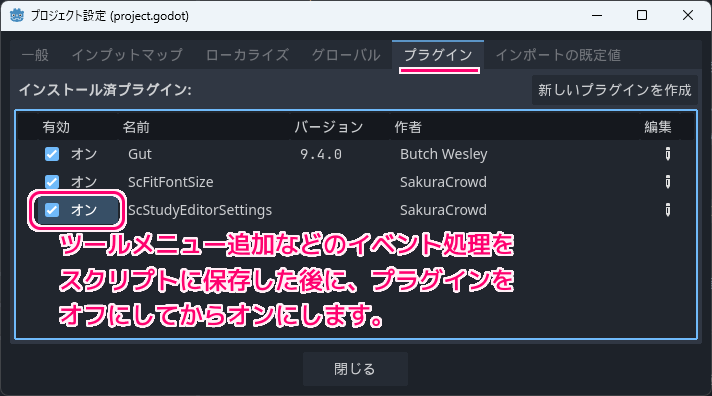
スクリプトを貼り付けたら、その _enter_tree イベント関数を呼び出してツールメニューを追加させるために、プラグインを有効化します。
メニュー「プロジェクト」→「プロジェクト設定」で表示されたダイアログの「プラグイン」タブを開き、さきほど作成したプラグインの「有効」チェックボックスをオフにしてからオンにします。
このときに _enter_tree イベントが呼び出されて、ツールメニューが追加されます。
※以降はスクリプトを変更しない限り、チェックの切り替えは不要です。
追加したツールメニュー「プロジェクト」→「ツール」→「Study EditorSettings By Dictionary」を選択します。
ツールメニューに関連付けたメンバ関数が呼び出され、辞書変数に指定した独自の2つの設定値が EditorSettings に保存されました。
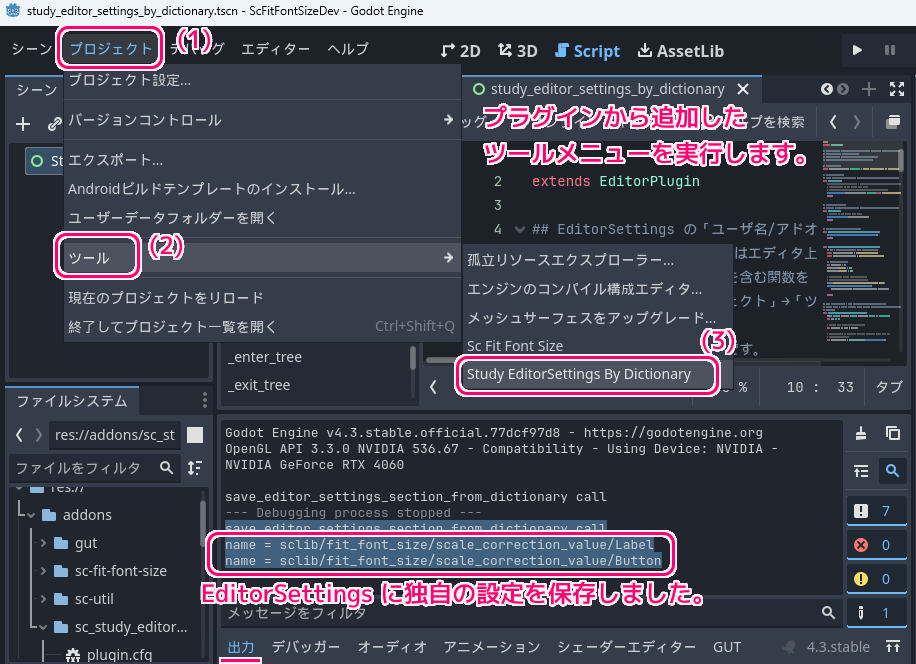
以下は、保存した設定の name の print 文の結果です。
save_editor_settings_section_from_dictionary call
name = sclib/fit_font_size/scale_correction_value/Label
name = sclib/fit_font_size/scale_correction_value/Button前述の「C:\Users\ユーザー名\AppData\Roaming\Godot」フォルダの editor_settings-バージョン.tres ファイル(例:editor_settings-4.3.tres )をテキストエディタで開いて、 name の一部で検索すると、指定した独自の name と value の設定値が追加されています。
sclib/fit_font_size/scale_correction_value/Label = 0.9
sclib/fit_font_size/scale_correction_value/Button = 1.0
metadata/script_setup_templates_dictionary = {
"": "0ObjectEmpty",
"AcceptDialog": "0NodeDefault",
"AnimatableBody2D": "0NodeDefault",
"AnimatedSprite2D": "0NodeDefault",
"Area2D": "0NodeDefault",
"Button": "0NodeDefault",
"Camera2D": "0NodeDefault",
"CharacterBody2D": "0CharacterBody2DBasic Movement",
"Control": "0NodeDefault",
"EditorProperty": "0NodeDefault",
"Label": "0NodeDefault",
"MarginContainer": "0NodeDefault",
"Node": "0NodeDefault",
"Node2D": "0NodeDefault",
"Object": "0ObjectEmpty",
"RefCounted": "0ObjectEmpty",
"RichTextLabel": "0NodeDefault",
"RigidBody2D": "0NodeDefault",
"SpinBox": "0NodeDefault",
"Sprite2D": "0NodeDefault",
"StaticBody2D": "0NodeDefault"
}
metadata/export_template_download_directory = "C:/Users/hiro0/AppData/Local/Godot"
metadata/script_setup_use_script_templates = true
辞書変数の要素を EditorSettings の独自の設定値として保存できました。
まとめ
- EditorSettings の設定値は、「C:\Users\ユーザー名\AppData\Roaming\Godot」フォルダの editor_settings-バージョン.tres ファイルにテキスト形式で保存されます。
- EditorInterface の EditorSettings などの機能は、シーン実行時は利用できないため、ツールメニューを選択して実行しました。
- EditorSettings の set_setting メンバ関数を用いて独自の設定値を name と value の組み合わせで保存しました。
参照サイト Thank You!
- Godot Engine – Free and open source 2D and 3D game engine
- Dictionary — Godot Engine (4.3) documentation in English
- EditorInterface — Godot Engine (4.x)の日本語のドキュメント
- EditorSettings — Godot Engine (4.3) documentation in English
記事一覧 → Compota-Soft-Press



コメント